AI headshots for email signatures
Email signature photos
A small photo that puts a face to every email you send. Upload a few selfies and get 25 to 80 professional photos in about 20 minutes. Pick one, crop it round or square and add it to your signature in Gmail, Outlook or Apple Mail.
- From $29, one-time payment
- 14-day money-back guarantee
- Your selfies stay private
Project update
Your name to Anna

Your name
Job title, Company
- paid once, no subscription
- From $29
- typical delivery time
- 20 minutes
- photos to choose from
- 25 to 80
- the file a signature needs
- 200 × 200 px
A photo for your email signature in three steps
No photo shoot. About 3 minutes of your time.
-
1
Upload a few selfies
Add 5–10 everyday photos of yourself, taken in daylight and from different angles.
About 2 minutes -
2
Pick a calm, simple look
A plain or softly blurred background and a clear face work best at signature size. A shirt or blazer suits most offices.
About 1 minute -
3
Add it to your signature
Download the photo you like best, resize it to 200 × 200 px with our free tool and add it to your signature.
Ready in 20 minutes
Email signature photos made from selfies
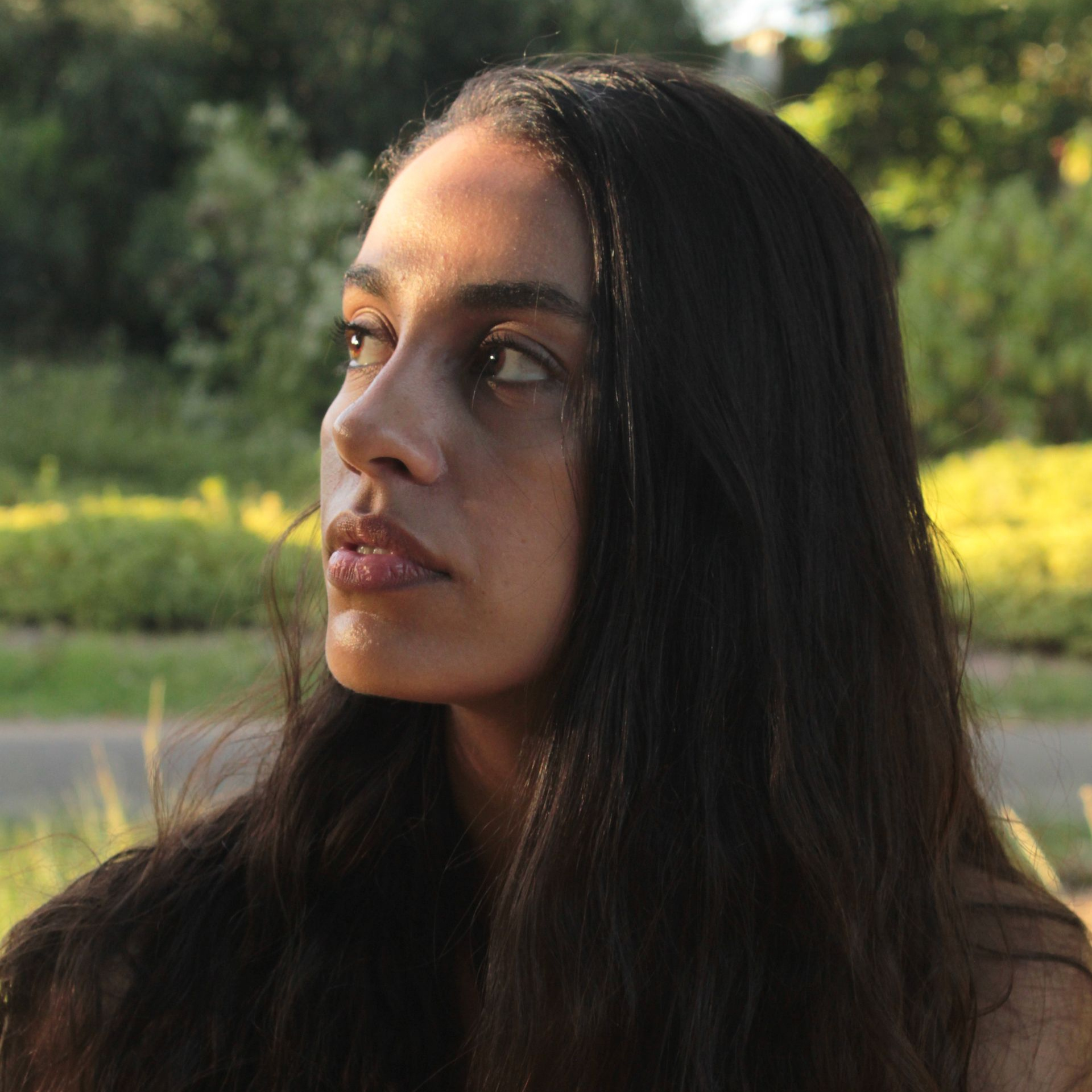
The selfie is in the corner. Every photo can be cropped round or square for your signature.

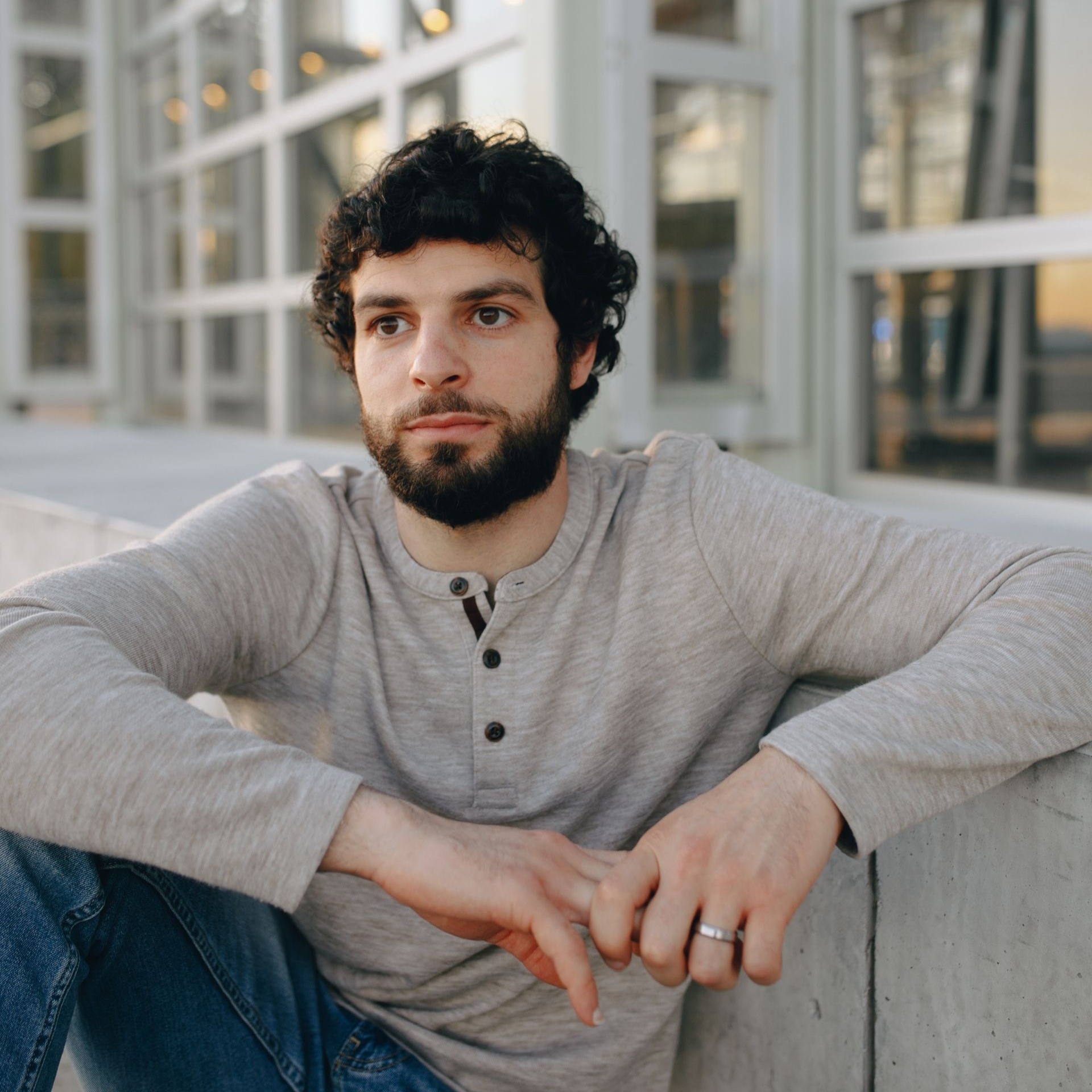
 Navy suit, studio grey


 Charcoal blazer, office
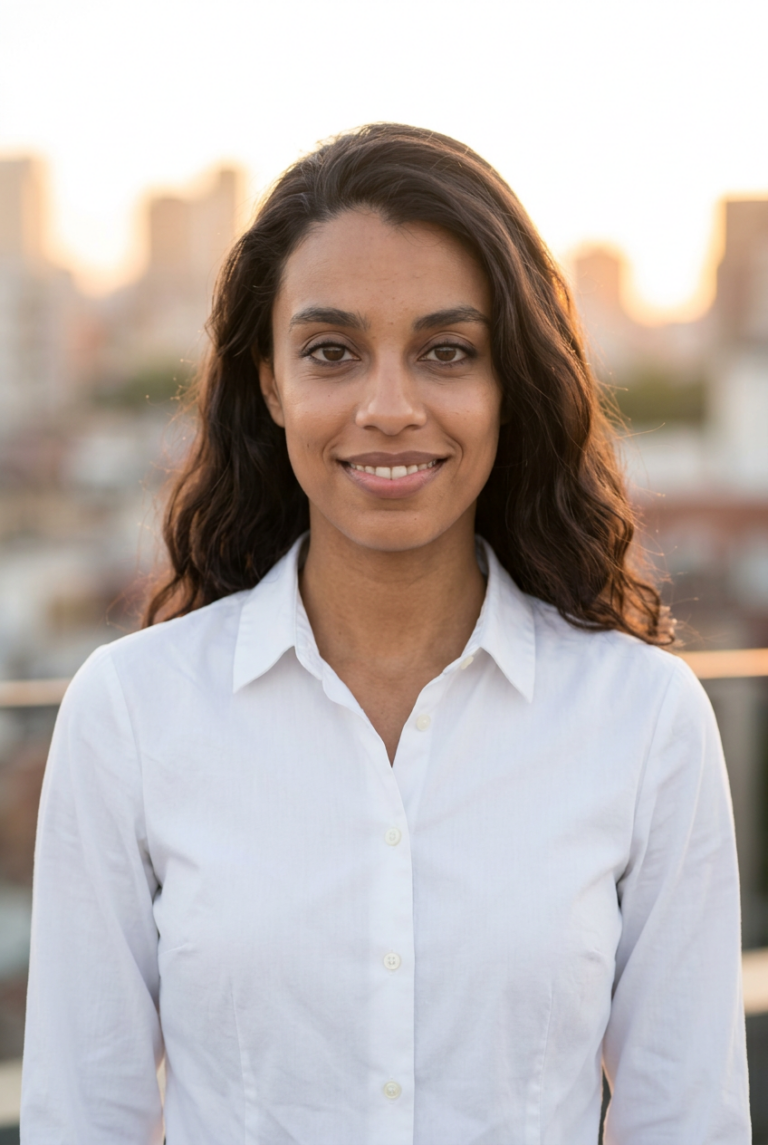
 White shirt, city


 Smart casual, outdoor


 Black turtleneck, bookshelf


 Grey suit, studio grey


 Navy blazer, outdoor


 Knit and blazer, city
What makes a good email signature photo
In an email your photo is the size of a thumbnail. What looks good on a big screen can disappear at 100 pixels.
-
Your face, close up
Crop from the top of the head to the shoulders. At signature size a face that fills the frame is still easy to recognise.
-
A plain, light background
A busy background turns into noise at 100 px. Light grey, white or a soft blur keep the attention on you.
-
Sharp on every screen
Upload 200 × 200 px for a photo shown at about 100 px.
-
Friendly, not stiff
A natural smile and eye contact make an email feel like it comes from a person, not from a department.
-
One photo everywhere
Use the same photo in your signature, on LinkedIn and in your calendar, so people recognise you before the first call.

- Shown in the email
- 80–120 px
- File to upload
- 200 × 200 px, JPG
- File size
- under 200 KB
Common advice of email signature tools.
The right photo file for your signature
Email programs treat signature images in different ways. These values are a safe choice for Gmail, Outlook and Apple Mail.
| What | Recommended | Why |
|---|---|---|
| Size shown in the email | 80–120 px | Big enough to recognise a face, small enough to keep the signature compact. |
| Size of the file | 200 × 200 px | Twice the size shown, so the photo stays sharp on high-resolution screens. |
| Format | JPG | Photos are much smaller as JPG. PNG is for logos, or for a round photo with clear corners. |
| File size | Under 200 KB | The image travels with the emails you send. A small file loads at once, also on a phone. |
| Shape | Round or square | Round looks friendlier. Outlook may show a round crop as a square, so cut the file itself round. |
| Outlook | Resize the file | Some versions show the image at the size of the file and ignore the size set in the signature, so upload it ready-sized. |
Where your signature photo shows
At the end of every email you send, on a big screen and on a phone.
Project update
 Your nameJob title, Company
Project update
 Your nameJob title, Company
Project update
 Your nameJob title, Company
Resize your photo for an email signature
Our free profile picture resizer cuts your photo to 200 × 200 px, round or square, ready to add to Gmail, Outlook or Apple Mail.
Drop your photo here
JPG, PNG or WebP. You can also paste a photo from the clipboard. It stays on your device.
The circle is your file: the corners are cut off. Drag to move, zoom with the slider or pinch.
- 200 × 200 px, shown at about 100 px
- Under 200 KB
- JPG, or PNG for clear round corners
More options
200 × 200 px · JPG
- Free, no sign-up
- Your photo never leaves your device
- Ready for Gmail, Outlook and Apple Mail
PicSuit, a photographer, or a selfie?
Three ways to get a photo for your signature.
| Compare | PicSuit | Photographer | Phone selfie |
|---|---|---|---|
| Cost | From $29, paid once | Paid per session, plus extra for retouching or more photos | Free |
| Time | About 20 minutes, from home | Booking, the session and the editing | A minute, many retakes |
| Background | Studio, office or outdoor, evenly lit | A studio backdrop | Whatever is behind you |
| A whole team | Everyone picks the same backdrop and style | One photo day for everyone | Every photo looks different |
| Choice | 25 to 80 photos | A handful of retouched shots | The best of your attempts |
| Not happy? | 14-day money-back guarantee | Pay for another session | Try again |
Choose the look that fits your industry
Mix outfits and backdrops, from boardroom formal to relaxed smart casual.
Outfits
-
Navy suit
-
Charcoal blazer
-
White shirt
-
 Smart casual knit
-
 Black turtleneck
Backdrops
-
 Studio grey
-
 Office
-
 City
City
-
 Bookshelf
-
 Outdoor
Pay once. Keep your headshots forever.
No subscription and nothing to cancel.
Starter
For a quick profile photo update.
$29 one-time
- Included: 25 headshots
- Included: 3 styles (outfit + backdrop)
- Not included: No redo session
- Included: Standard quality
Professional
RecommendedFor LinkedIn, your CV, and your website.
$49 one-time
- Included: 50 headshots
- Included: 7 styles (outfit + backdrop)
- Not included: No redo session
- Included: High quality
Complete
For the widest choice of looks.
$79 one-time
- Included: 80 headshots
- Included: 12 styles (outfit + backdrop)
- Included: 1 redo session on request
- Included: 4K quality
14-day money-back guarantee
If you don't get a headshot you'd happily use, we refund your payment.
Your selfies stay yours
You're trusting us with your face. Here's exactly what we do with it.
-
Deleted after 30 days
Your uploads are removed automatically, or right away when you ask.
-
Used only for your headshots
Your photos never train anyone else's results.
-
Never sold or shared
No advertisers, no data brokers, no public galleries without your consent.
-
The headshots are yours
Use them anywhere, for personal and commercial purposes.
Questions about email signature photos
Can't find your answer? Contact
Should I put a photo in my email signature?
It helps whenever people do not know you yet: in sales, recruiting, customer service and consulting. A face makes an email feel personal and helps people recognise you on a call. Some companies have rules for signatures, so check yours first.
What size should an email signature photo be?
Show it at about 80 to 120 pixels and upload a file twice that size, such as 200 × 200 px, so it stays sharp on high-resolution screens. Keep the file under 200 KB.
Round or square photo?
Both work. A round photo looks friendlier and matches LinkedIn and most chat apps. Some versions of Outlook ignore rounded corners, so for a round photo cut the file itself round, for example with our free resizer.
Why does my signature photo look huge or blurry in Outlook?
Some versions of Outlook show an image at the size of the file and ignore the size set in the signature. Resize the file itself to about 200 × 200 px before you add it.
How do I add a photo to my Gmail signature?
In Gmail open Settings, then See all settings. In the Signature section, use the image button to add your photo and save the changes at the bottom of the page.
Can our whole team get matching photos?
Yes. Everyone uploads their own selfies and picks the same backdrop and outfit style, so the signatures of the whole team look consistent. For a team order, write to us.
Can I use the same photo on LinkedIn and on my CV?
Yes. You get enough photos for all three: a small crop for your signature, a square one for LinkedIn and a portrait crop for your CV.
Put a face to every email you send
One-time payment from $29. 14-day money-back guarantee.